> For the complete documentation index, see [llms.txt](https://docs.maplytics.com/llms.txt). Markdown versions of documentation pages are available by appending `.md` to page URLs; this page is available as [Markdown](https://docs.maplytics.com/features/azure-maps-maplytics-list-control/by-location.md).

# By Location

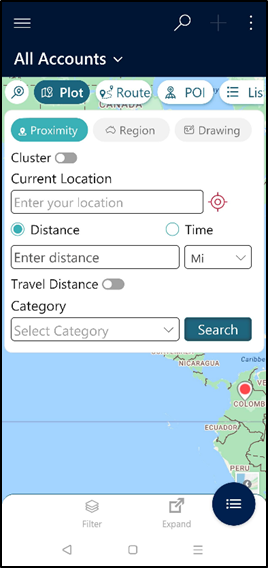
This helps the user to plot the data using the geocoding of each record. By Location search option also allows the user to perform Proximity/Radius Search based on Distance or Time.

The user can click on Locate me to set the user’s current GPS location. The user can also set a new current location using the contextual menu. Refer to the section of the Contextual menu.&#x20;

<figure><img src="/files/VWIzJlzOy7PA562e60z6" alt=""><figcaption></figcaption></figure>

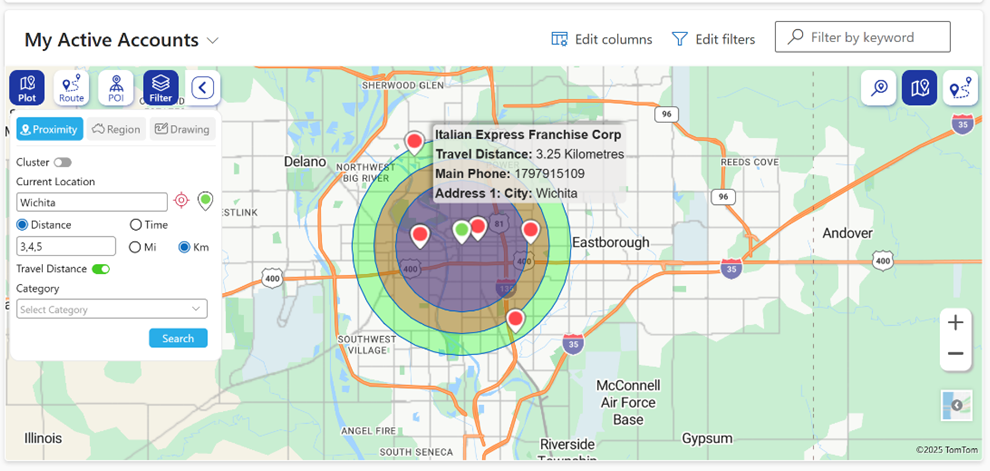
Once the user sets the current location, they can perform a Concentric Proximity Search and can look for the Travel Distance on the hover or the tooltip card for any record plotted within the specified proximity.

The records can be plotted based on distance or time. Consider a radius of 3 miles, the records within it will appear as follows.

<figure><img src="/files/SI7jbBtDohYgNclxxLFd" alt=""><figcaption></figcaption></figure>

<figure><img src="/files/TXBjobVDAfSYtDSyABMh" alt=""><figcaption></figcaption></figure>

<figure><img src="/files/XI3ahab8uiQsOMs3jpZT" alt=""><figcaption></figcaption></figure>

The records can be visualized in Cluster form where the number of pushpins are shown as clusters as shown below reference.

<figure><img src="/files/16W8bu1u6JqKkvMryDe8" alt=""><figcaption></figcaption></figure>

<figure><img src="/files/8Qqms0T3wV7Or7oEPPn9" alt=""><figcaption></figcaption></figure>

<figure><img src="/files/aJc6vI7VvXQC0iYxoALM" alt=""><figcaption></figcaption></figure>

Clicking on the pushpin within the plotted circle opens a tooltip card with details of the record and travel distance.

<figure><img src="/files/Pnfjl04Lj4FceKIjiPkt" alt=""><figcaption></figcaption></figure>

The records for multiple radii would appear as follows and the travel distance to a pushpin from the current location would appear on hover.

<figure><img src="/files/npaL6GYbrKTY5aQJNAGK" alt=""><figcaption></figcaption></figure>

Records can be plotted based on time in hrs. or mins, considering Traffic or not based on users' choice. Consider user is willing to travel for 50 minutes in traffic. The records within a 50-minute drive will be plotted as follows, The user can hover over the pushpin to see the Travel Time to that record from the current location.

<figure><img src="/files/42UzRKnHWbYKE7Xj8oHt" alt=""><figcaption></figcaption></figure>


---

# Agent Instructions
This documentation is published with GitBook. GitBook is the documentation platform designed so that both humans and AI agents can read, navigate, and reason over technical content effectively. Learn more at gitbook.com.

## Querying This Documentation
If you need additional information that is not directly available in this page, you can query the documentation dynamically by asking a question.

Perform an HTTP GET request on the current page URL with the `ask` query parameter, and the optional `goal` query parameter:

```
GET https://docs.maplytics.com/features/azure-maps-maplytics-list-control/by-location.md?ask=<question>&goal=<endgoal>
```

`ask` is the immediate question: it should be specific, self-contained, and written in natural language.
`goal` is optional and describes the broader end goal you are ultimately trying to accomplish on behalf of the user. GitBook uses it to tailor the answer towards what is most useful for that goal.

The response will contain a direct answer to the question and relevant excerpts and sources from the documentation.

Use this mechanism when the answer is not explicitly present in the current page, you need clarification or additional context, or you want to retrieve related documentation sections.